Click to go to home page: SingerInMe.com.
Tutorial: How do I upload one or more tracks from my local device?
SingerInMe
Last modified: 1 January 2014


The first step is to Sign In to SingerInMe.com
  1. Go to www.SingerInMe.com.
  2. Select Sign In from the top right corner of the web page.
  3. Use your Sign In credentials and sign into SingerInMe.com. If you have not joined SingerInMe, then select Join SingerInMe.
  4. After you Sign In, you will be taken to the home page.


Note: The feature of being able to play your audio track and load multiple tracks from your local device and associate them automatically to your playlist is available only for paid Bronze-L, Bronze, Silver-L, Silver, Gold-L, and Gold subscription. The feature to automatically associate your tracks (audio and video) from your cloud to the lyrics or your playlist is available only for paid Gold-L and Gold subscription.

Note: At this moment, Chrome, Firefox, and Opera web browsers on Android devices such as smartphones, tablets, or phablets allow users to load one or more tracks from the local device. You can access local tracks through a file browser on laptops and desktops. iOS (iPad, iPhone, iPod touch) devices do not allow users to access local tracks.

Operating Systems (OS) allowing access to a local track on your device through a file browser are listed in the table below.

OS/BrowserChromeFirefoxIEOperaSafariUser Experience
Ranking
AndroidYesYesN/AYesN/AA
iOS
(iPad, iPhone,
iPod touch)
--N/A--F
Mac
Desktop/Laptop
YesYesN/AYesYesA
Windows
Desktop/Laptop
YesYesYesYesN/AA


You can upload one or multiple tracks from your local device by selecting Track Location/File Change link image from any of the three (3) pages:
  1. Lyrics View page to sing lyrics. (Load one or more tracks to match the lyrics)
  2. Lyrics Edit page to create or modify your lyrics. (Load one or more tracks to match the lyrics)
  3. Lyrics Live On Stage page to sing lyrics from your playlist and begin performing. (Load multiple tracks to match the playlist)


Lyrics View page to sing lyrics (Load one or more tracks to match the lyrics)

From the Lyrics View page, for this tutorial, we will assume you want to upload two tracks (La_Bamba_K.wav, La_Bamba_O.mp3) for the lyrics La Bamba. You wish to upload two track types (_K and _O) because you want to switch easily between the Karaoke (_K) and Original (_O) track as you are perfecting the song. For SingerInMe to automatically associate your tracks to the lyrics, you must name the tracks as described in What convention should I follow for naming my tracks?'.GlobalStrings::LAUNCH_IN_ANOTHER_WINDOW_TOOLTIP.'
  1. Go to the home page: SingerInMe.com
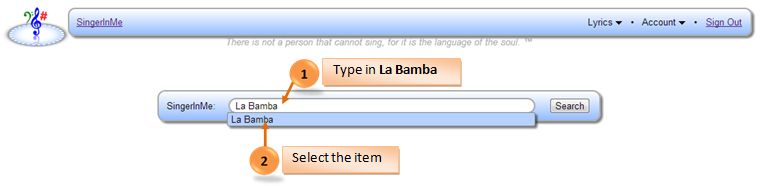
  2. Type La Bamba in the search box and select the entry from the search menu as shown in the figure below.
    Search for La Bamba
    Search for La Bamba
  3. Selecting the item from a menu will either put you on a Lyrics View page or on a Search Results page when multiple lyrics of the song are found. If your are presented a Search Results page, then click on the title that represents your preferred lyrics and you will be directed to the Lyrics View page.

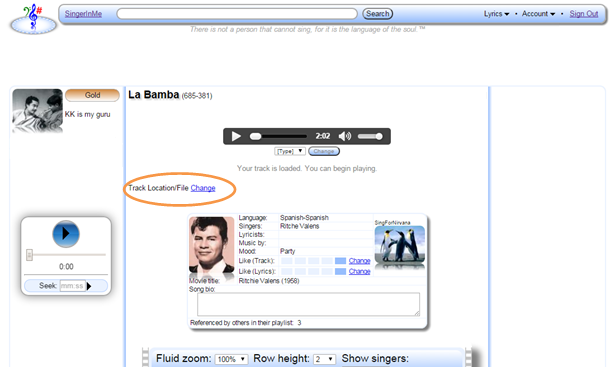
    For this tutorial assume there is only one copy of the lyrics. Selecting La Bamba from the menu will put you on a Lyrics View page as shown in the figure below.
    Track Location/File Change link image
    Showing Track Location/File Change link on a Lyrics View page
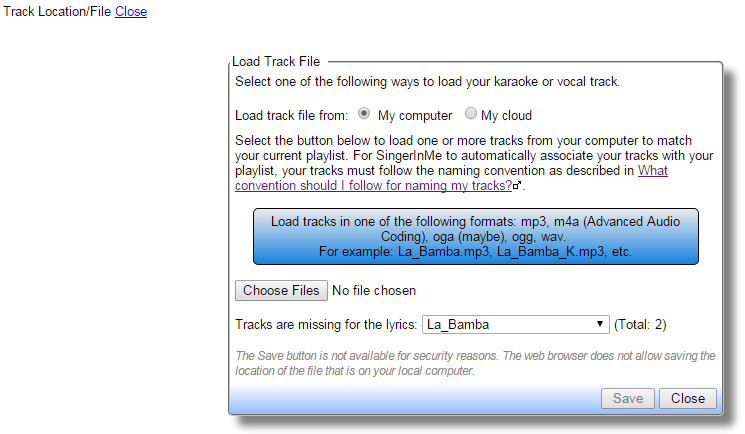
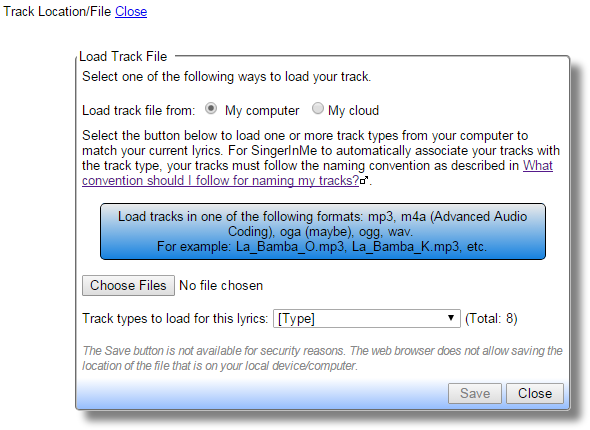
  4. Select the Change link, the Change link will be renamed to Close, and a dialog box will appear as shown below.
    Load Track File dialog
    Load Track File dialog on Lyrics View page
  5. To upload a track from your laptop/desktop, select the My computer radio button and then select the Choose Files (for Chrome browser) or Browse... (for Firefox browser) to access a File Browser dialog. The button may be labeled differently in various browsers. Navigate to the directory where you have your tracks and select the appropriate button in the file browser dialog to upload the files.
    Note: You do not need to upload all the track types.
    Note: Due to security reasons imposed by browsers, the location of the track cannot be saved. Each time you visit a Lyrics View page, you will need to follow the steps just outlined to upload the tracks.

  6. To see the Lyrics View page for La Bamba on SingerInMe.com, click on La Bamba.


Lyrics Edit page to create or modify your lyrics (Load one or more tracks to match the lyrics)

For this tutorial, we will assume you want to edit your version for the lyrics La Bamba and upload two tracks to provide accurate lyrics (listen to original track) or to provide accurate timings (listen to karaoke track). For SingerInMe to automatically associate your tracks to the lyrics, you must name the tracks as described in What convention should I follow for naming my tracks?'.GlobalStrings::LAUNCH_IN_ANOTHER_WINDOW_TOOLTIP.'
  1. Go to the lyrics page Twist And Shout that you have authored and wish to edit.
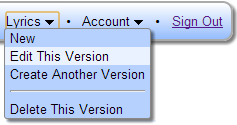
  2. Select Lyrics→Edit This Version as shown in figure below.
    Edit This Version menu item in Lyrics menu
    From Lyrics menu select Edit This Version
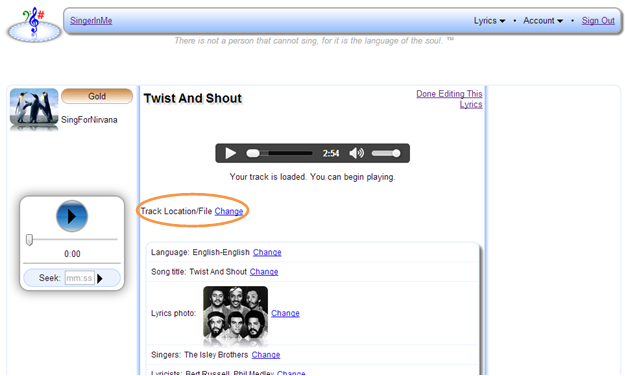
  3. Selecting Lyrics→Edit This Version on the lyrics page Twist And Shout will direct you to Lyrics Edit page as shown in figure below.
    Note: You will only be presented the option of Edit This Version if you are the author of the lyrics page.
    Track Location/File Change link
    Showing Track Location/File Change link on a Lyrics Edit page
  4. Select the Change link, the Change link will be renamed to Close, and a dialog box will appear as shown below.
    Load Track File dialog
    Load Track File dialog on Lyrics Edit page
  5. To upload a track from your laptop/desktop, select the My computer radio button and then select the Choose Files (for Chrome browser) or Browse... (for Firefox browser) to access a File Browser dialog. The button may be labeled differently in various browsers. Navigate to the directory where you have your tracks and select the appropriate button in the file browser dialog to upload the files.
    Note: You do not need to upload all the track types.
    Note: Due to security reasons imposed by browsers, the location of the track cannot be saved. Each time you save from a Lyrics Edit page, you will need to follow the steps just outlined to upload the tracks.


Lyrics Live On Stage page to sing lyrics from your playlist and begin performing (Load multiple tracks to match the playlist)

For this tutorial, we would assume you want to upload tracks from your local device for your playlist The Club - Dec 2013.
  1. Go to the home page: SingerInMe.com
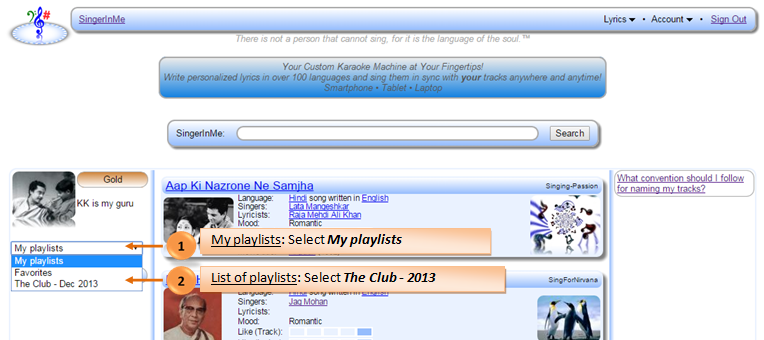
  2. Select My playlists dropdown menu and then select the playlist The Club - Dec 2013 as shown in the figure below.
    Search for <b><i>La Bamba</i></b>
    Select The Club - Dec 2013 from My playlists
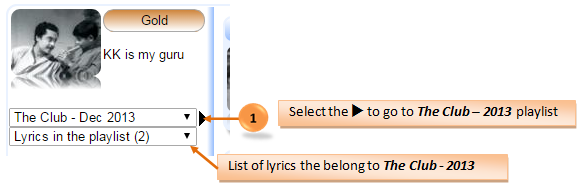
  3. Selecting The Club - Dec 2013 will show you the number of lyrics for The Club - Dec 2013 in the Lyrics in the playlist dropdown menu as shown in the figure below.
    Search for <b><i>La Bamba</i></b>
    Select ► to go to The Club - Dec 2013 playlist
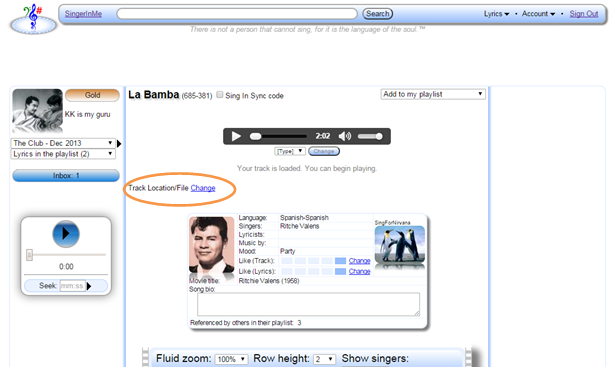
  4. After selecting The Club - Dec 2013, you may either select the right arrow as shown in the figure above or any lyrics from the Lyrics in the playlist dropdown menu to go to the playlist The Club - Dec 2013. Assuming the first lyrics in the playlist is La Bamba and you selected the right arrow, you will be taken to the Lyrics Live On Stage page as shown in the figure below.
    <b><i>The Club - Dec 2013</i></b>
    Lyrics Live On Stage page for The Club - Dec 2013 playlist
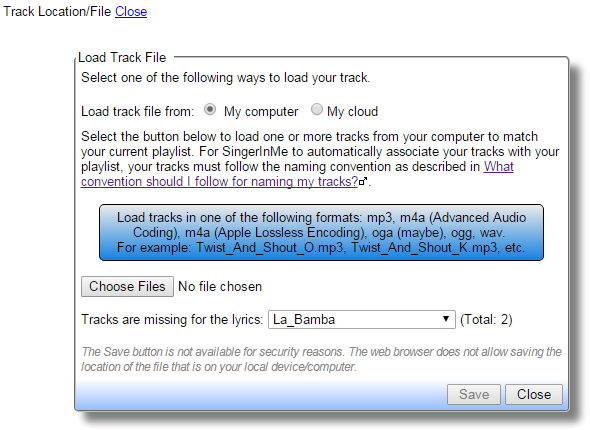
  5. Select the Change link, the Change link will be renamed to Close, and a dialog box will appear as shown below.
    Load Track File dialog
    Load Track File dialog on Lyrics Live On Stage page
  6. To upload one or multiple tracks from your laptop/desktop, select the My computer radio button and then select the Choose Files (for Chrome browser) or Browse... (for Firefox browser) to access a File Browser dialog. The button may be labeled differently in various browsers. Navigate to the directory where you have your tracks and select the appropriate button in the file browser dialog to upload one or more tracks.
    For SingerInMe to automatically associate your tracks to the lyrics in your playlist, you must name the tracks as described in What convention should I follow for naming my tracks?'.GlobalStrings::LAUNCH_IN_ANOTHER_WINDOW_TOOLTIP.'
    Loading one track will associate the track with the matching lyrics in your playlist and not necessarily the lyrics page that is currently been displayed. Thus allowing you to go to multiple directories and upload tracks one at a time. It is recommended that you create a separate directory corresponding to each of your playlists to quickly upload all the necessary tracks.
    Note: Due to security reasons imposed by browsers, the location of the track cannot be saved. Each time you visit a Lyrics Live On Stage page, you will need to follow the steps just outlined and upload the tracks every time.

CORRESPONDENCE Sign In to contact SingerInMe.
 

Copyright © 2013-2026 SingerInMe.com All rights reserved.www.SingerInMe.com